 Want to know the shortcut keys on window XP? Are you new to your
computer operating system window XP. Window XP is well known and review
as the good window operating system because of its minimal system
requirements and many recomment it to those computer owner that has a
low system hardware. I remember a article that had read, telling that
among the three window operating system, window 7 is the best while
window xp is good. It my not have a good graphics but it is better than
window vista when it comes to system performance speeds. Well aside from
that information, I will share you the shortcut keys that can be useful
on your computing experience.
Want to know the shortcut keys on window XP? Are you new to your
computer operating system window XP. Window XP is well known and review
as the good window operating system because of its minimal system
requirements and many recomment it to those computer owner that has a
low system hardware. I remember a article that had read, telling that
among the three window operating system, window 7 is the best while
window xp is good. It my not have a good graphics but it is better than
window vista when it comes to system performance speeds. Well aside from
that information, I will share you the shortcut keys that can be useful
on your computing experience.
What is Shortcut keys?
Shortcut keys are keyboard keys (or key combinations) which are configured to execute an often-used command or set of commands.
Windows XP Shortcuts:
ALT+- (ALT+hyphen) Displays the Multiple Document Interface (MDI) child window's System menu
ALT+ENTER View properties for the selected item
ALT+ESC Cycle through items in the order they were opened
ALT+F4 Close the active item, or quit the active program
ALT+SPACEBAR Display the System menu for the active window
ALT+TAB Switch between open items
ALT+Underlined letter Display the corresponding menu
BACKSPACE View the folder one level up in My Computer or Windows Explorer
CTRL+A Select all
CTRL+B Bold
CTRL+C Copy
CTRL+I Italics
CTRL+O Open an item
CTRL+U Underline
CTRL+V Paste
CTRL+X Cut
CTRL+Z Undo
CTRL+F4 Close the active document
CTRL while dragging Copy selected item
CTRL+SHIFT while dragging Create shortcut to selected iteM
CTRL+RIGHT ARROW Move the insertion point to the beginning of the next word
CTRL+LEFT ARROW Move the insertion point to the beginning of the previous word
CTRL+DOWN ARROW Move the insertion point to the beginning of the next paragraph
CTRL+UP ARROW Move the insertion point to the beginning of the previous paragraph
SHIFT+DELETE Delete selected item permanently without placing the item in the Recycle Bin
ESC Cancel the current task
F1 Displays Help
F2 Rename selected item
F3 Search for a file or folder
F4 Display the Address bar list in My Computer or Windows Explorer
F5 Refresh the active window
F6 Cycle through screen elements in a window or on the desktop
F10 Activate the menu bar in the active program
SHIFT+F10 Display the shortcut menu for the selected item
CTRL+ESC Display the Start menu
SHIFT+CTRL+ESC Launches Task Manager
SHIFT when you insert a CD Prevent the CD from automatically playing
WIN Display or hide the Start menu
WIN+BREAK Display the System Properties dialog box
WIN+D Minimizes all Windows and shows the Desktop
WIN+E Open Windows Explorer
WIN+F Search for a file or folder
WIN+F+CTRL Search for computers
WIN+L Locks the desktop
WIN+M Minimize or restore all windows
WIN+R Open the Run dialog box
WIN+TAB Switch between open items


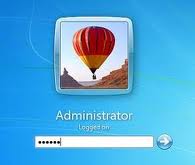 Want to change the default image / picture of your computer account?
Your computer has already have an image / picture for your account. This
image / picture can be seen before computer start to load up the
desktop. Where you need to enter password or choosing your account if
there are more than one account created. It can also be seen on the
start menu for window vista and window 7. If you dont like your
account's primary image / picture and want to know how to change it.
Want to change the default image / picture of your computer account?
Your computer has already have an image / picture for your account. This
image / picture can be seen before computer start to load up the
desktop. Where you need to enter password or choosing your account if
there are more than one account created. It can also be seen on the
start menu for window vista and window 7. If you dont like your
account's primary image / picture and want to know how to change it.


 When you open your computer, after you log in. Do it take long time for
your desktop to start-up, did you notice how your Memory/RAM was used up
by many program that is running hidden at your computer's background
that will eventually result to slow performances. You can see it by
opening the task manager then click Performance. Does the boot time of
your computer are too fast that your computer dont have enough time to
close all program that is currently running and use by the user. These
three are the common problem for those computer user that has too many
program installed in their computer.
When you open your computer, after you log in. Do it take long time for
your desktop to start-up, did you notice how your Memory/RAM was used up
by many program that is running hidden at your computer's background
that will eventually result to slow performances. You can see it by
opening the task manager then click Performance. Does the boot time of
your computer are too fast that your computer dont have enough time to
close all program that is currently running and use by the user. These
three are the common problem for those computer user that has too many
program installed in their computer.


